
03 March 2025
Splitch
Splitch is a plugin for Adobe Photoshop, released by Atelier Tatanka under a source–available license. This tool is the result of a research project lasting over a year, dedicated to the study of risograph printing and its color separation processes. The research explored ink performance, color channel separation, screen behavior, and prepress workflow optimization, with the goal of making the entire postproduction process for printing more efficient and accessible.
- typeplugin
- softwareadobe photoshop
- functionsColor channel separation, halftoning, export
- export formatsPDF, TIFF, JPG, PSD
- compatibilitymac OS / Windows
- languageeng
- file format.ccx
- licenseSource-available
- developerIndici Opponibili
- last updateseptember 2025
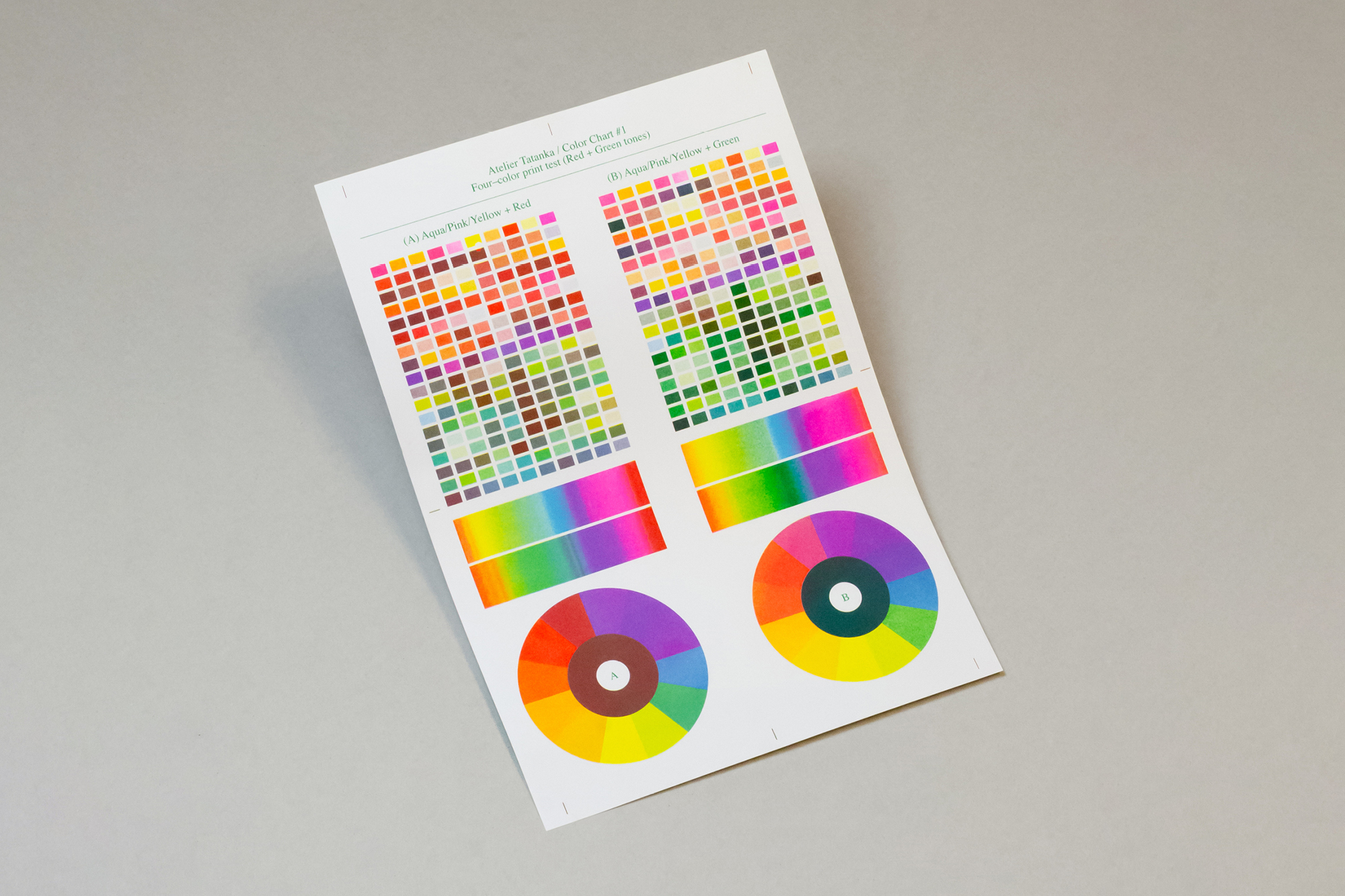
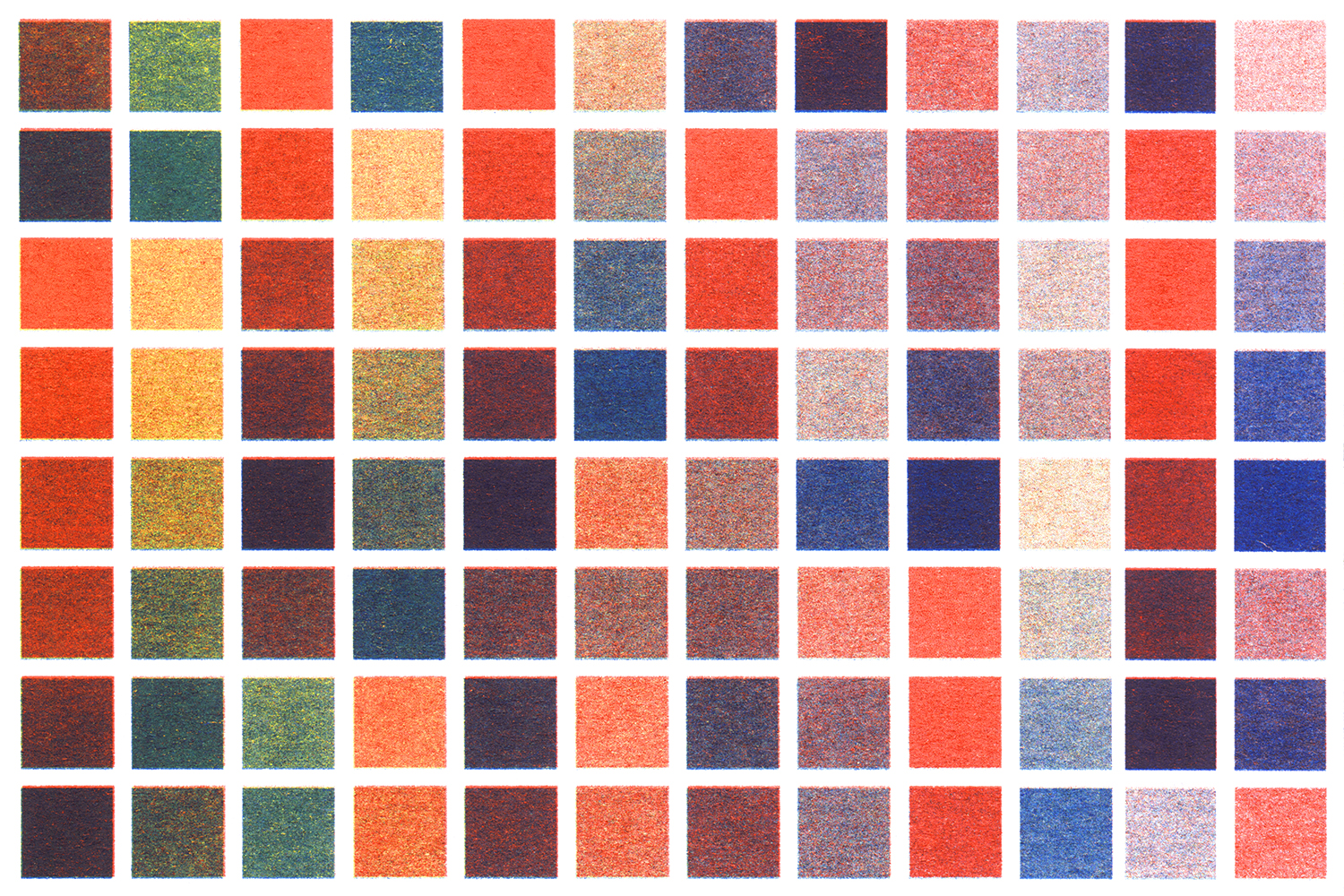
In multi-pass printing techniques — such as risograph or screen printing — each color corresponds to an independent print layer. For this reason, the image must be separated into monochromatic layers, each assigned to a specific ink. The final result emerges from the physical overprint of these layers, following the principles of subtractive synthesis.
In this context, the use of custom ICC color profiles allows for more accurate simulation of color rendering during prepress, translating digital values into real-world correspondences with the inks used. Likewise, the choice of these profiles — as well as the type of halftone pattern and ink combinations — influences the density, detail, and tonal perception of the printed image.




Adobe Photoshop represents the ideal software for managing this phase of separation and postproduction, offering unique operational freedom — though often through processes that are complex, time-consuming, and unintuitive.
Splitch was created to simplify and make this process intuitive: a modular extension for Adobe Photoshop that allows users to manage, separate, and export color channels quickly, precisely, and in a fully customizable way. It’s created for designers, printers, and publishers working with layer-based printing, who seek a balance between technical control and operational agility.
Interface and Functionality
Splitch allows the management of images with CMYK or custom ICC (Multichannel) color profiles and optimizes their corresponding color separation processes. It provides editing tools and quick export options (PDF, TIFF, JPG, PSD) for each channel.
The plugin consists of two main dialog windows:
1. Opening Window
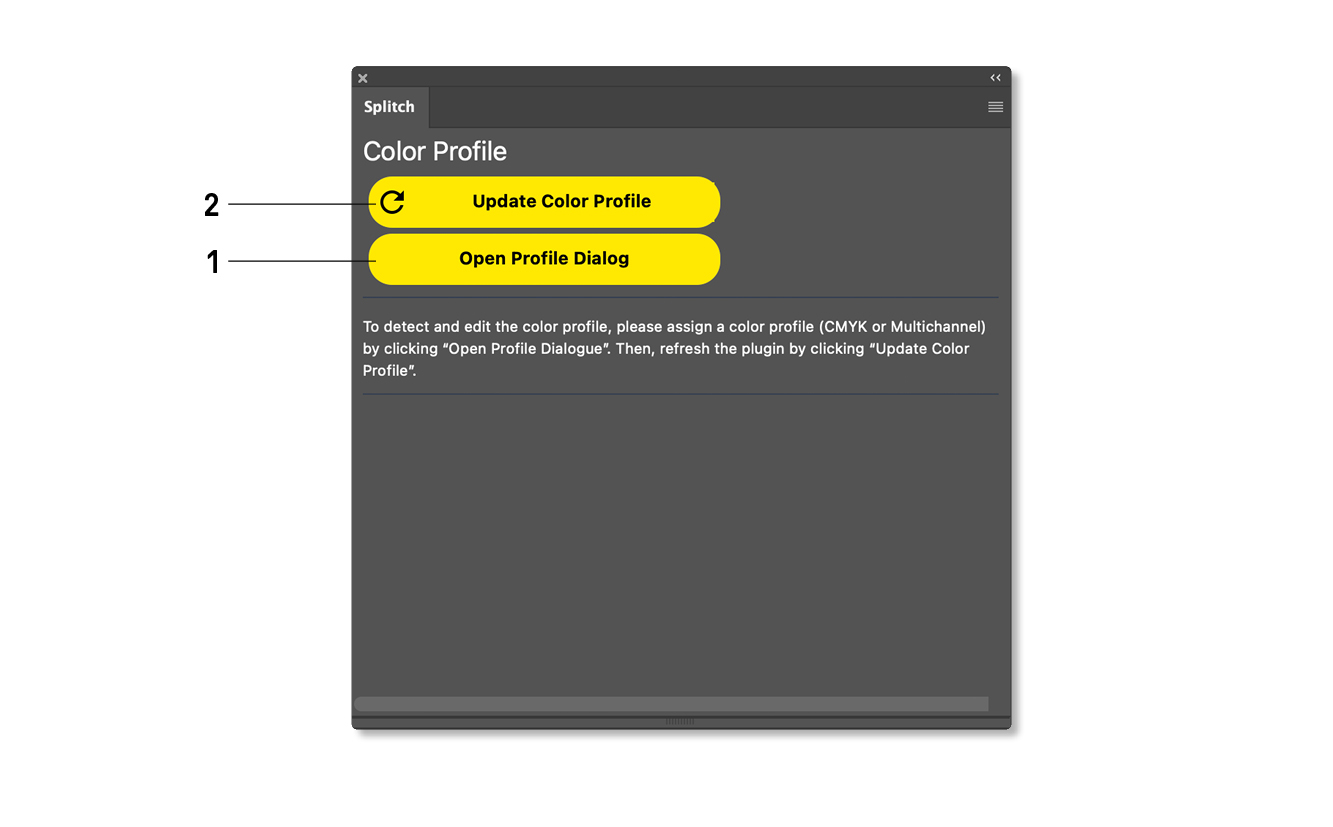
The window includes buttons with the following functions:
- 1 Selection and assignment of the color profile
- 2 Update of the color profile and channels
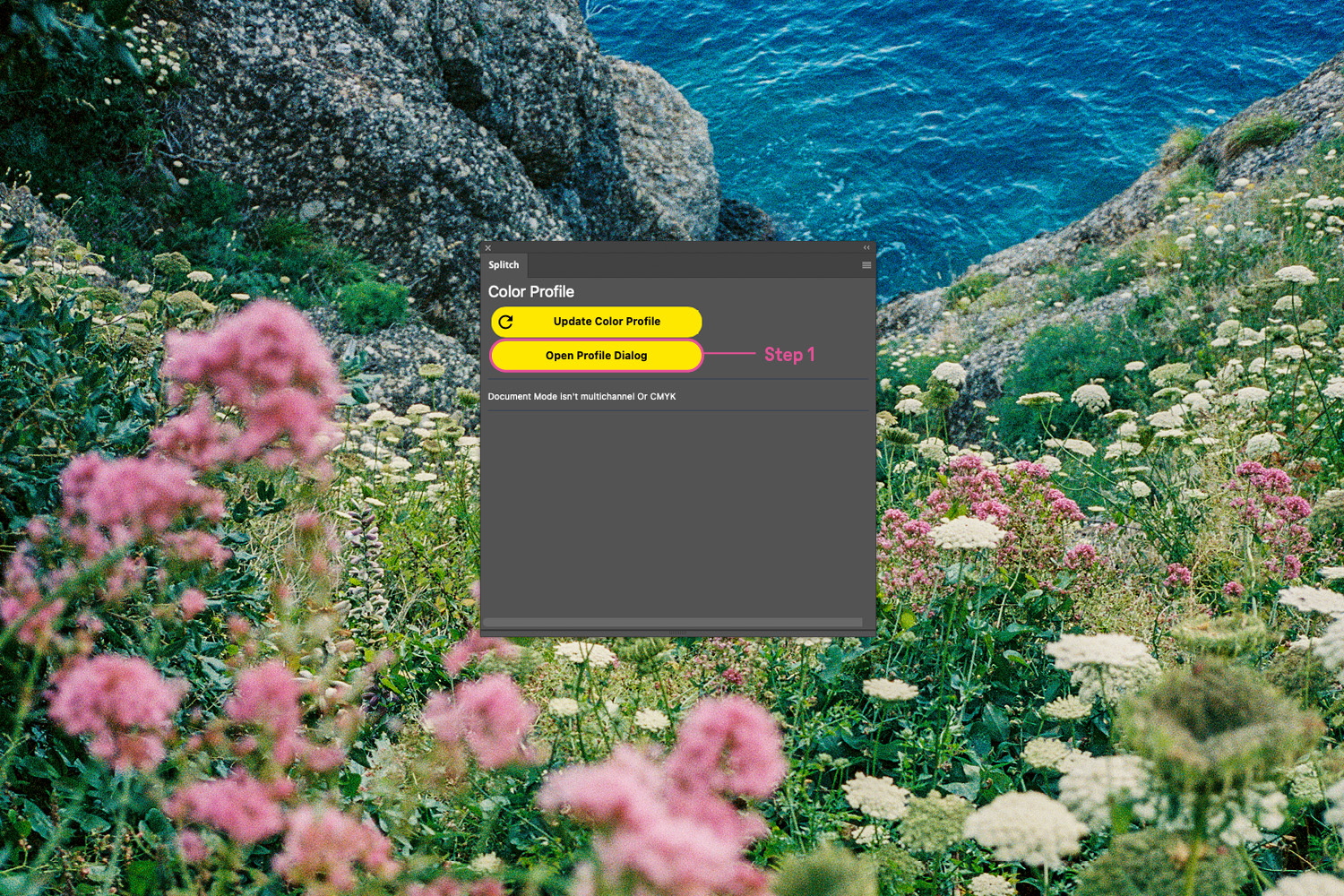
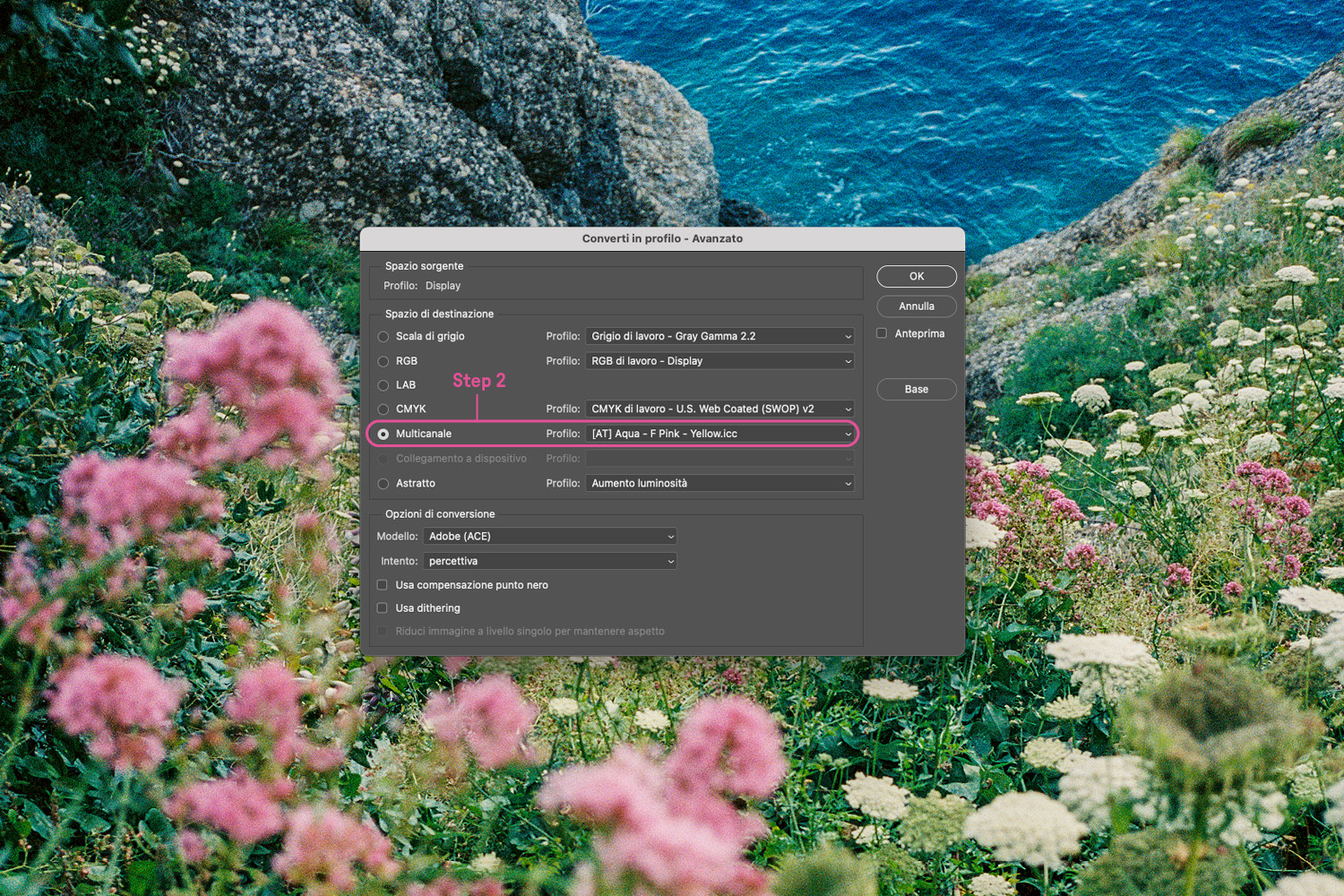
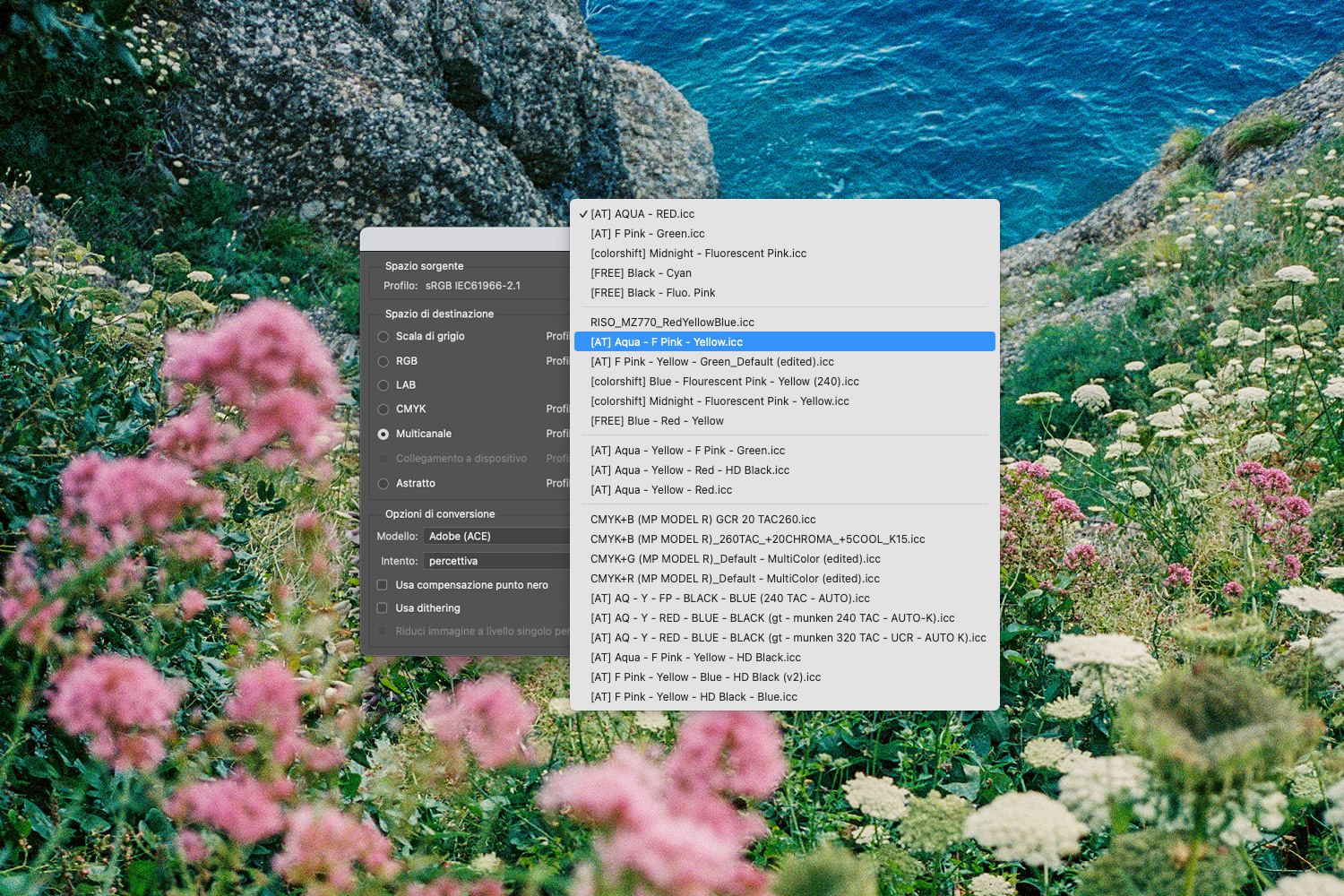
By selecting Open Profile Dialog (Step 1), you directly access Photoshop’s Convert to Profile — Advanced window, where it is possible to assign a CMYK or Multichannel color profile to the image (Step 2).
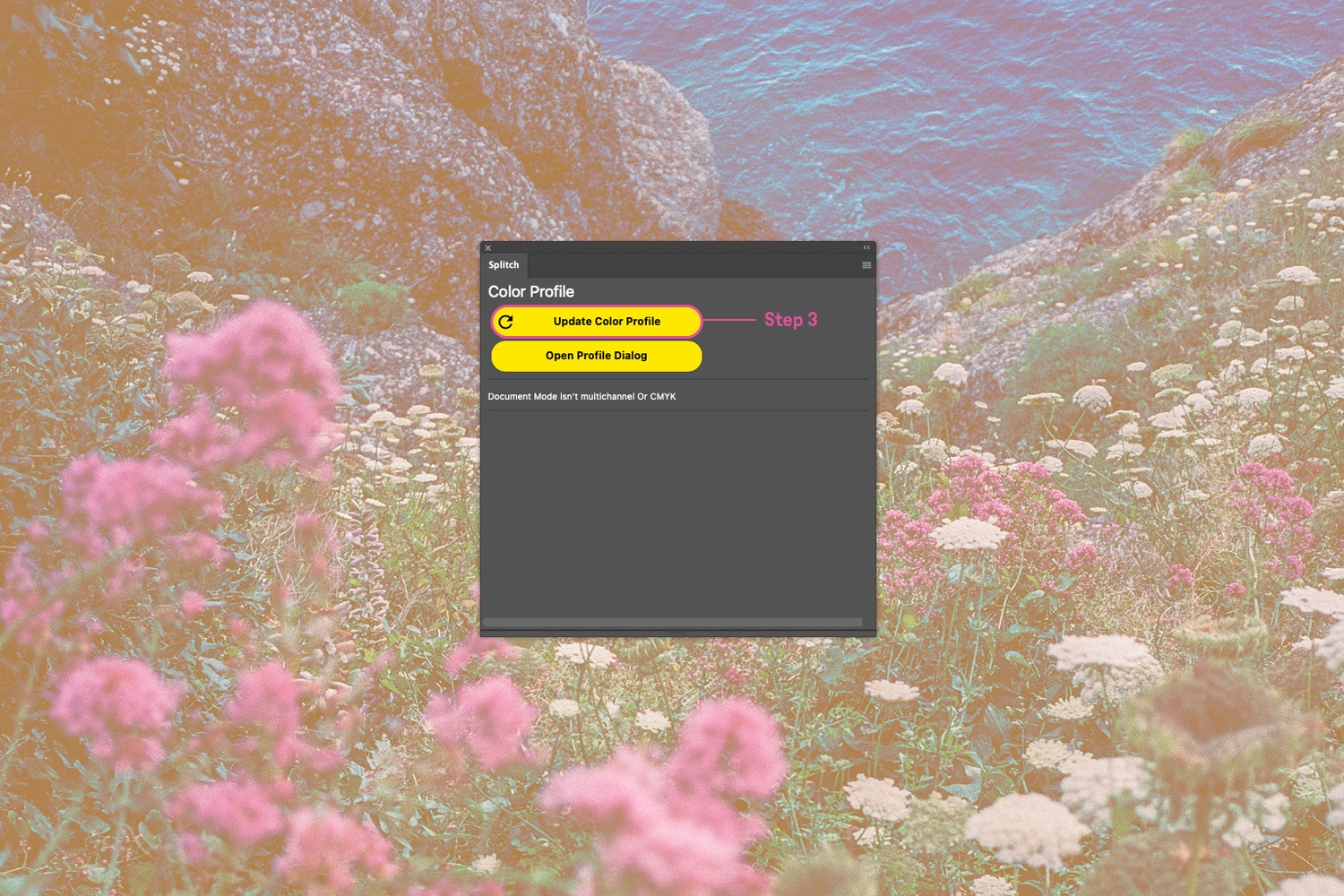
After selection, you must press Update Color Profile to refresh the plugin and access the second dialog window (Step 3).
2. Advanced Window
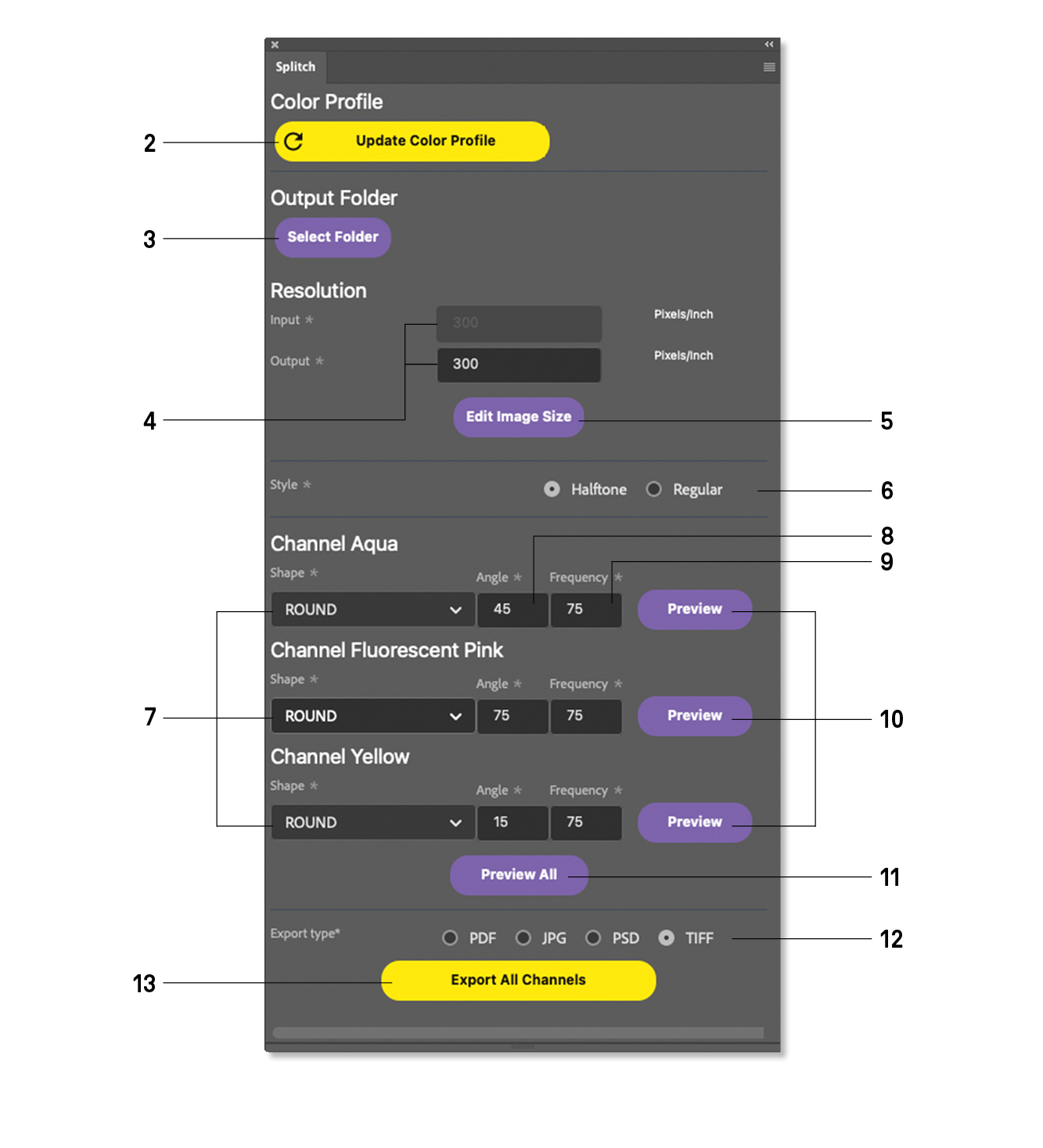
This section allows advanced management of export and color channel editing settings.
The window includes buttons with the following functions:
- 2 Update of the color profile and channels
- 3 Selection of the export folder
- 4 Import and export resolution
- 5 Image size settings
- 6 Screen styles
- 7 Screen shape
- 8 Screen angle
- 9 Screen frequency
- 10 Single-channel halftone preview
- 11 Full halftone preview
- 12 Export options
- 13 Export of all channels
Once opened, the dialog window displays all the channels related to the color profile used for the image conversion, along with their corresponding editing options.
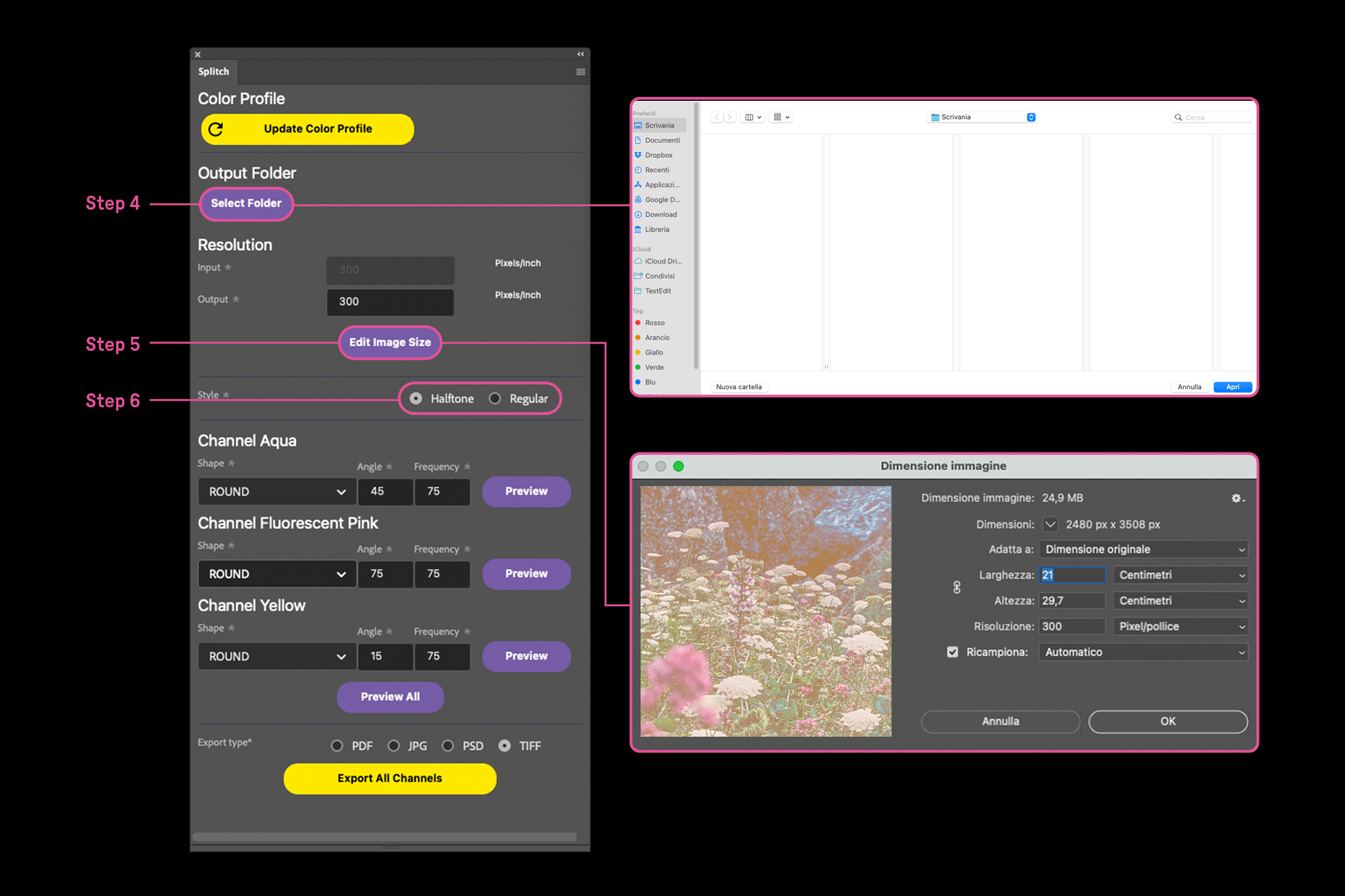
You can select the destination folder for future exports using the Select Folder button (Step 4). You can also manage the image resolution settings using the Input/Output values displayed in the window, or by interacting directly with the Image Size panel via the Edit Image Size button (Step 5).
Before proceeding with editing and export operations, it is necessary to confirm the desired halftone style by choosing between Halftone — already set as default — or Regular (Step 6).
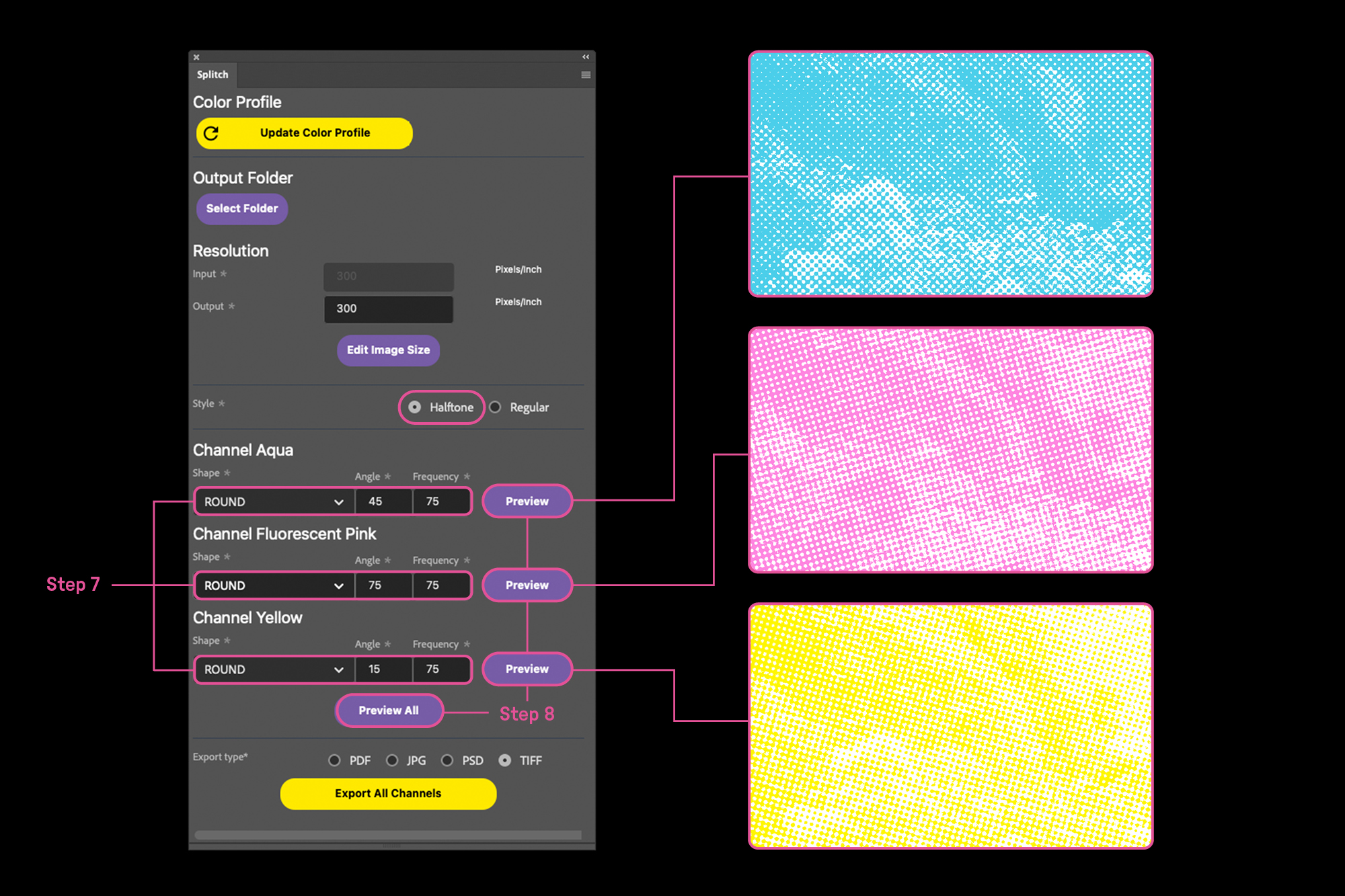
When selecting Halftone mode, each individual color channel can be configured by adjusting the halftone shape (round, square, elliptical, cross, line), angle, and frequency (LPI) (Step 7).
It is also possible to view quick previews of the individual color channels — with their respective styles applied — using the Preview buttons, or to generate a full composite preview of all channels using the Preview All button (Step 8). This is useful for evaluating layer interaction and color rendering before export.
Note: for every selected preview, a new temporary PSD file will be generated.
To continue with editing and postproduction operations, always return to and work from the original source PSD file.
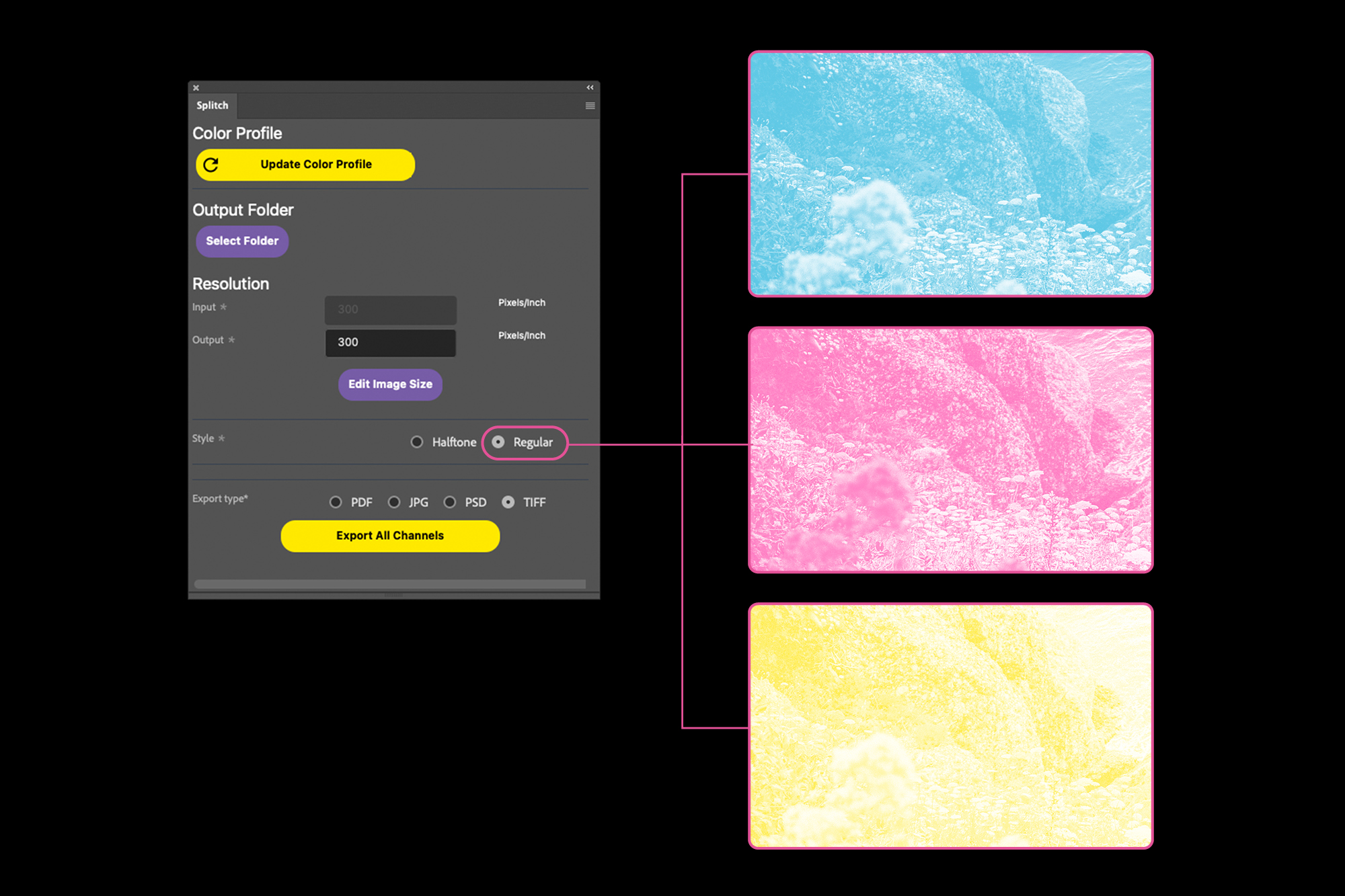
When Regular mode is selected, no editing options are displayed, as the color channels can be exported directly without the application of halftones.
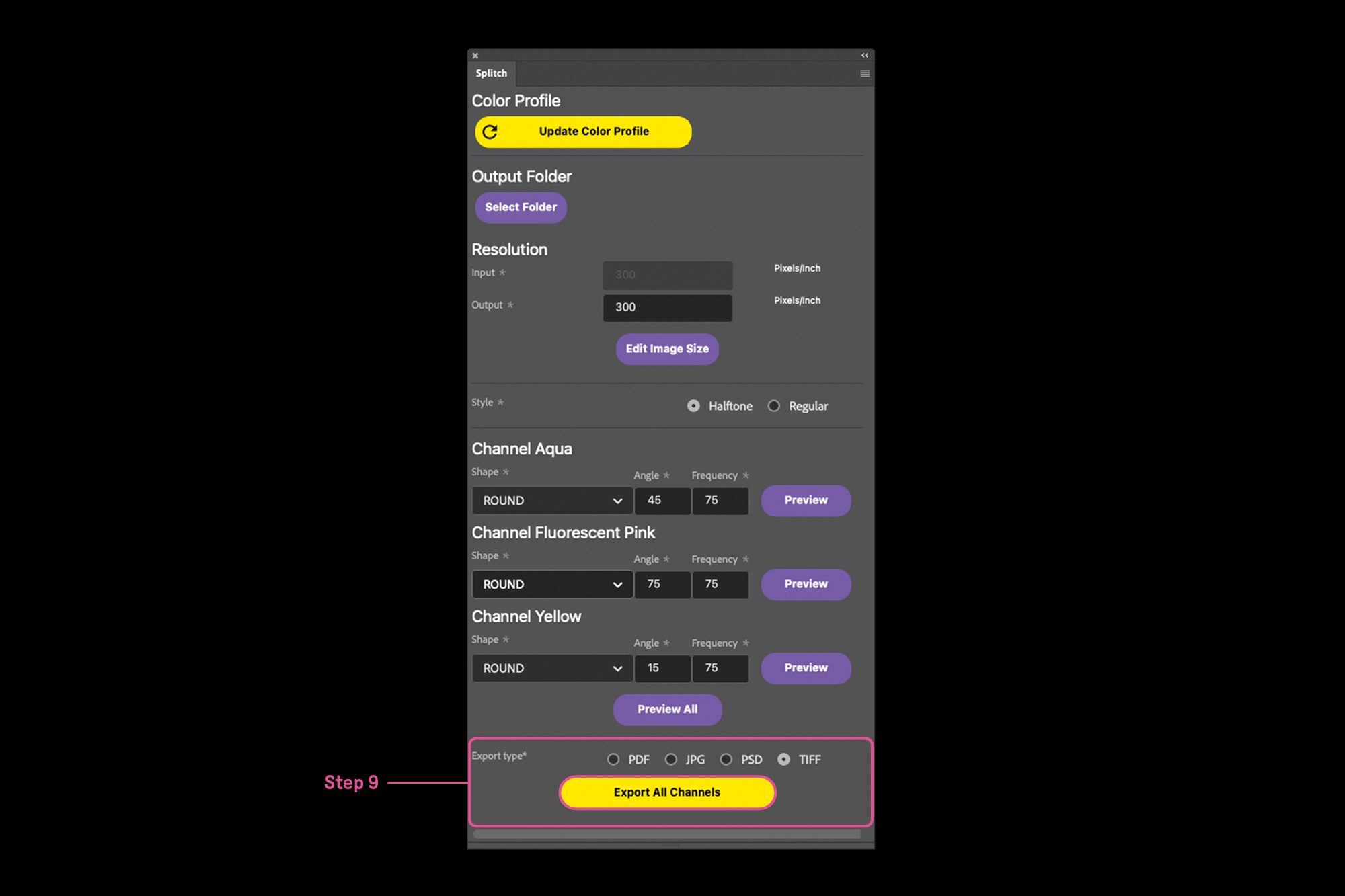
After completing these editing operations, the files can be exported to the selected destination folder by specifying the desired file type (PDF, TIFF, JPG, PSD) using the Export All button (Step 9).
If the image was edited in Halftone mode, the export process will generate one grayscale file per channel associated with the selected color profile, along with a general preview file of the halftoned image.
If the image was edited in Regular mode, the plugin will generate one grayscale file per channel associated with the selected color profile, without creating a general preview file.
Notes on use
Once separation, editing, and export operations are complete, to work on a new image it is necessary:
1. Open a new PSD file in RGB mode;
2. Press Update Color Profile to reset the settings and start a new workflow cycle;
3. Press Open Profile Dialog and assign a new Multichannel or CMYK color profile;
4. Press Update Color Profile again to update the color channel information associated with the assigned profile.
For correct use of Splitch, it is also important to consider the following specifications:
• The plugin’s advanced dialog window works exclusively with 8-bit per channel CMYK or Multichannel images;
• The plugin operates directly on the active PSD file in the workspace — ensure the correct file is open before proceeding with any operation to avoid export or editing issues.
Download
Splitch can be downloaded for free at the following link.






Riso Talks
- EventPlugin presentation
- curated byAtelier Tatanka
- whereVia dei Carrettieri 21/A, bologna
- whenMarch 7, 2025
- statuscompleted
The Splitch project and its functionalities will be presented for the first time on the occasion of Riso Talks, an event hosted at Atelier Tatanka space in Bologna.
Riso Talks is a moment of encounter and exchange dedicated to printing and research in the field of risograph. The event, structured in two sessions, will present the main outcomes of the research project carried out by Atelier Tatanka over the past year — including insights into the printing technique, image processing, color separation, and language — alongside the launch of the latest publications and tools developed as part of the same project.
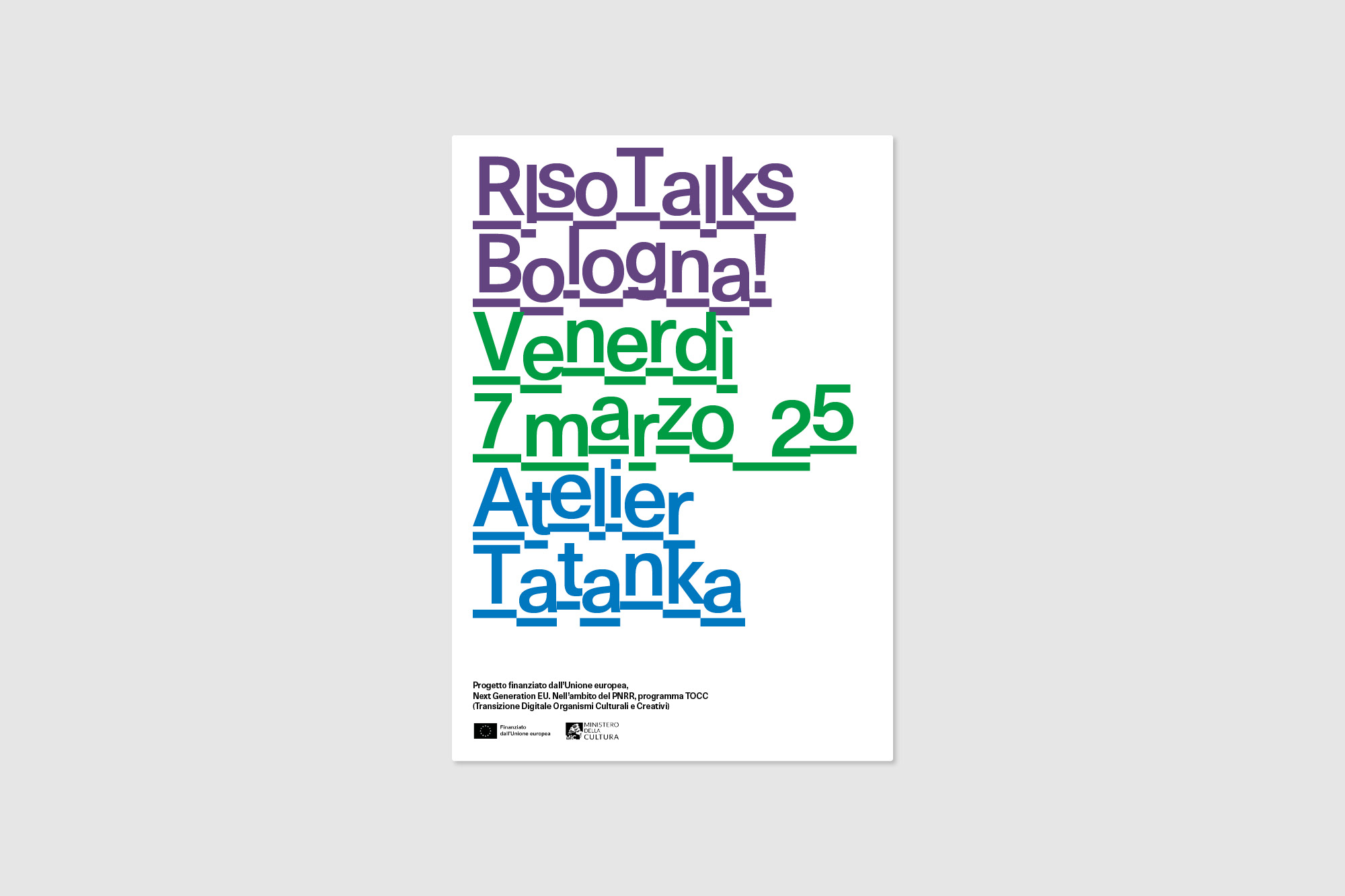

The project was funded by the European Union, Next Generation EU, as part of the PNRR, TOCC (Transizione Digitale Organismi Culturali e Creativi).
An error has occurred